

A video kiosk is a tablet or a totem in a branch or store that connects a customer to a remote specialist by video or voice. TrueEngage runs the kiosk as a dedicated widget connected to Genesys Cloud, so every kiosk call is queued, routed, recorded and reported in Genesys Cloud like any other interaction. One team of specialists can then serve every location, and the contact centre keeps one place to route, staff and report.
This guide follows a customer through the kiosk screen by screen, and shows what happens in Genesys Cloud at each step.
Why do branches and stores add video kiosks?
Most branch and store networks share the same staffing problem. Customers walk in with questions that need a specialist: a mortgage, a business account, a device that will not set up, a contract with unusual terms. The specialist sits in one office, or covers three locations, or works only on certain days. The customer is in the building now.
A video kiosk closes that distance. The customer taps a screen, and a specialist from anywhere in the network answers. Specialists stay where they are most productive, often together in one team, and every location gets access to the same expertise during the same opening hours.
For a business already running Genesys Cloud, the kiosk is one more touchpoint in the contact centre it has. The specialists who answer kiosk calls are Genesys Cloud agents in Genesys Cloud queues. Their schedules, skills, wrap-up codes and quality reviews are the ones the contact centre already manages.
Banks often call this an interactive teller machine or a virtual branch, depending on whether the screen sits next to cash services or replaces a staffed counter. Retailers and telecom operators call it remote expert. The software underneath is the same: a video connection from a screen on site to a specialist in the contact centre.
What does the customer see, and what happens in Genesys Cloud?
The TrueEngage kiosk journey has four screens: the start screen, the wait, the call and the close. Each screen sits on top of a standard Genesys Cloud object.
1. The start screen: four ways to get help
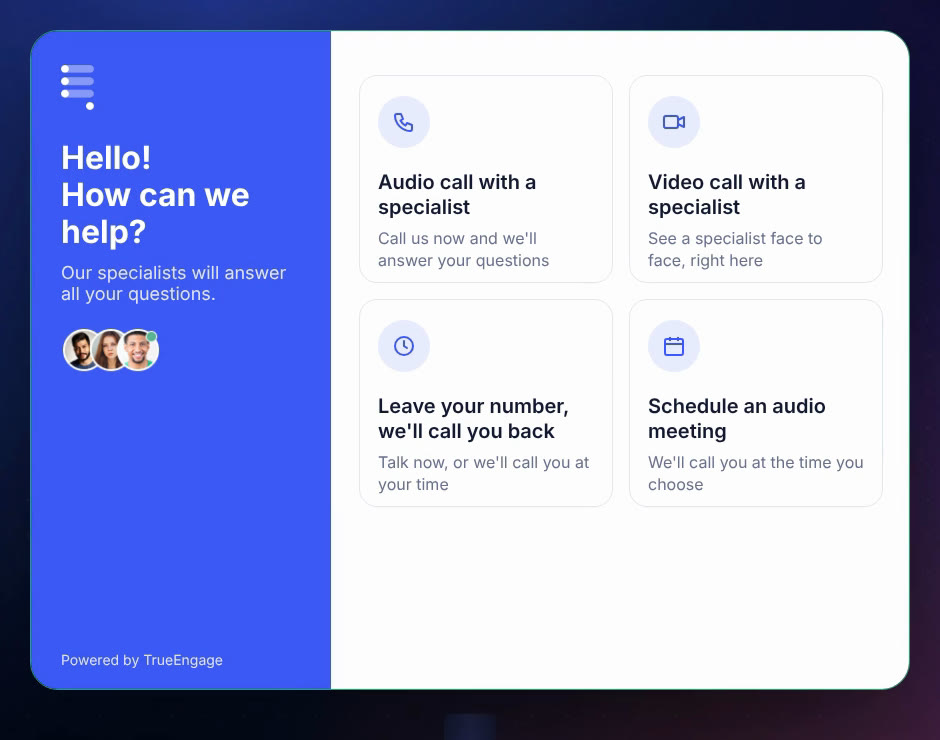
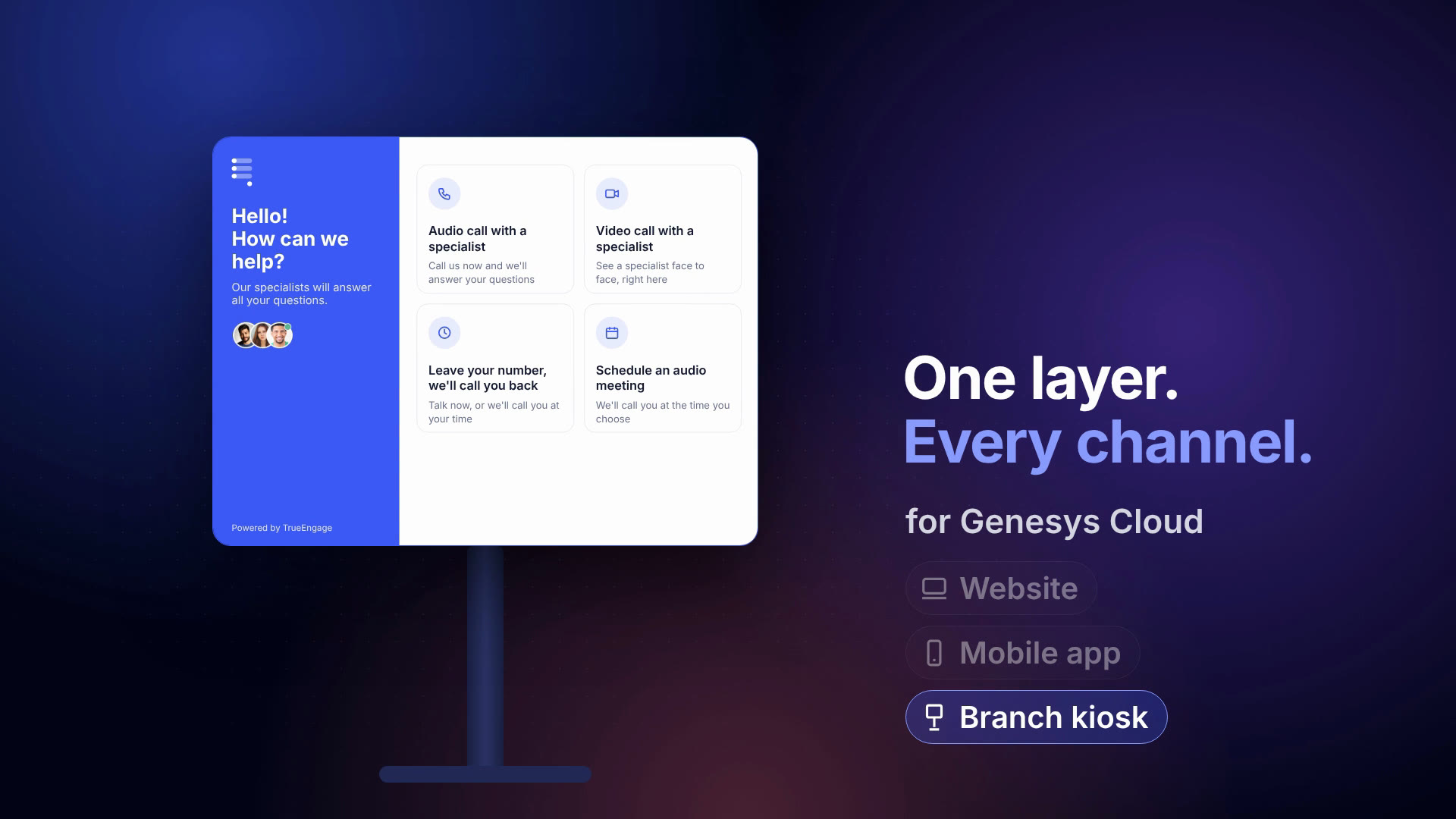
On the screen. The customer sees a short greeting, the faces of the specialist team and four large options:
- Audio call with a specialist. Call now and talk.
- Video call with a specialist. See a specialist face to face, right at the kiosk.
- Leave your number, we'll call you back. Talk now, or receive a call at a chosen time.
- Schedule an audio meeting. Book a time with a specialist for later.
The texts, colours, logo and photos are set by the business in the TrueEngage panel, so each kiosk carries the brand of the location it stands in.
In Genesys Cloud. Each option is a channel of the kiosk widget, and each kiosk widget has its own technical DID and call flow in Genesys Cloud. That means a kiosk can route differently from the website: a branch kiosk can go to a product-specialist queue while the website goes to general service, with no change on either side. Options follow Genesys schedule groups, so an option disappears outside the hours the specialist team works. A callback becomes a standard Genesys Cloud callback in the chosen queue. A scheduled meeting reserves no agent: at the booked time it enters a designated queue and the first available specialist takes it.
The widget can also start from a button or trigger on the device, so a kiosk that should offer only video opens straight into a single-channel view.
2. The wait: an honest estimate, and something to look at
On the screen. After the customer taps, the kiosk shows that a specialist is being found, the estimated wait and the number of people ahead. The rest of the screen can carry the business's own content, such as a product image or a current offer, so the wait is useful time. A Back and a Cancel button stay visible.
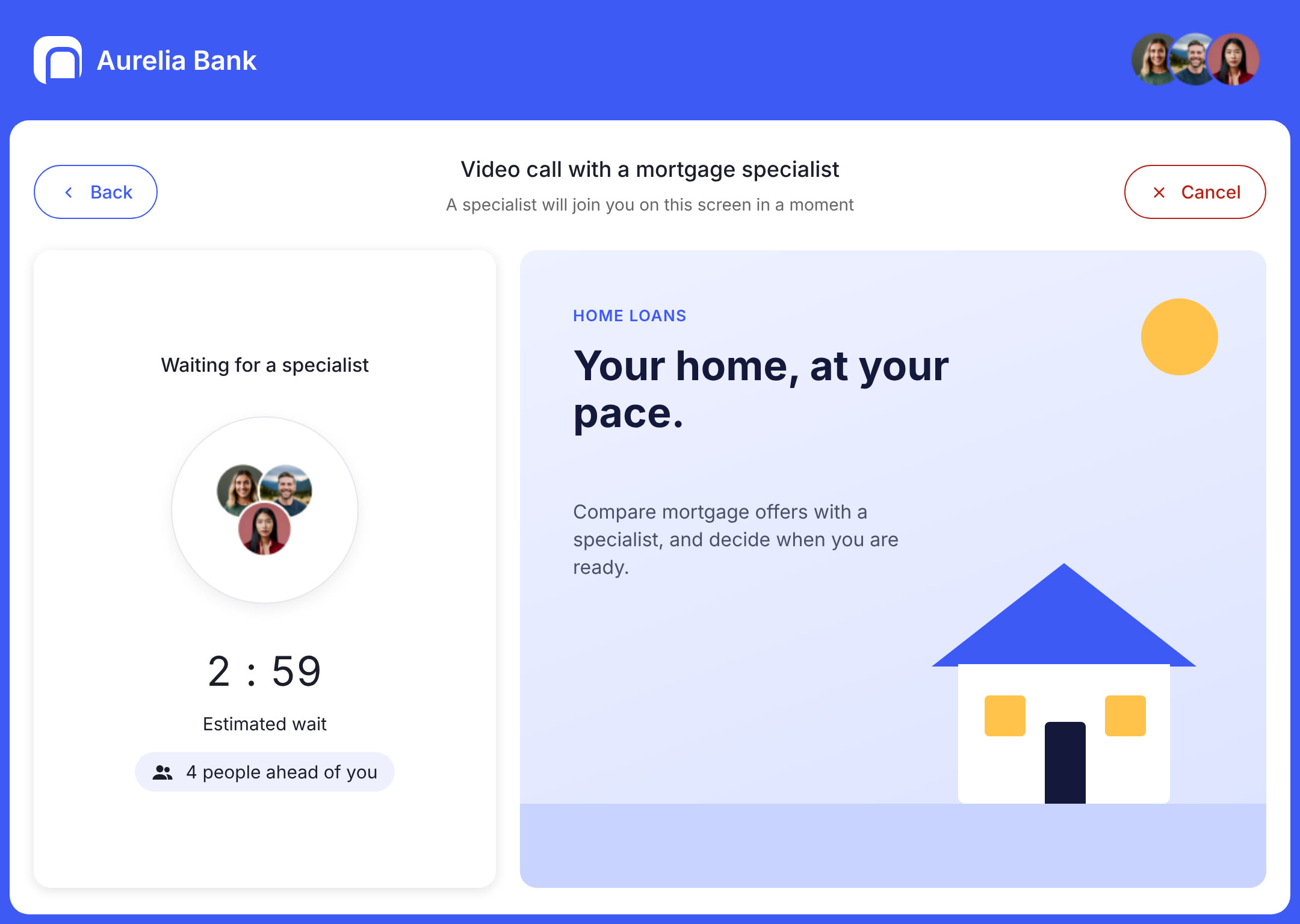
In Genesys Cloud. The call is already in a Genesys Cloud queue, ordered by the priorities, skills and routing the contact centre has configured. TrueEngage reads expected wait times from Genesys Cloud every 30 seconds. Each kiosk channel can carry its own wait-time threshold: when the queue is long, the immediate call can give way to a callback, and the customer leaves the kiosk with a time for the call. The mechanics are the same ones Owen Robinson describes for the website in Black Friday customer service.
3. The call: video with a chat beside it
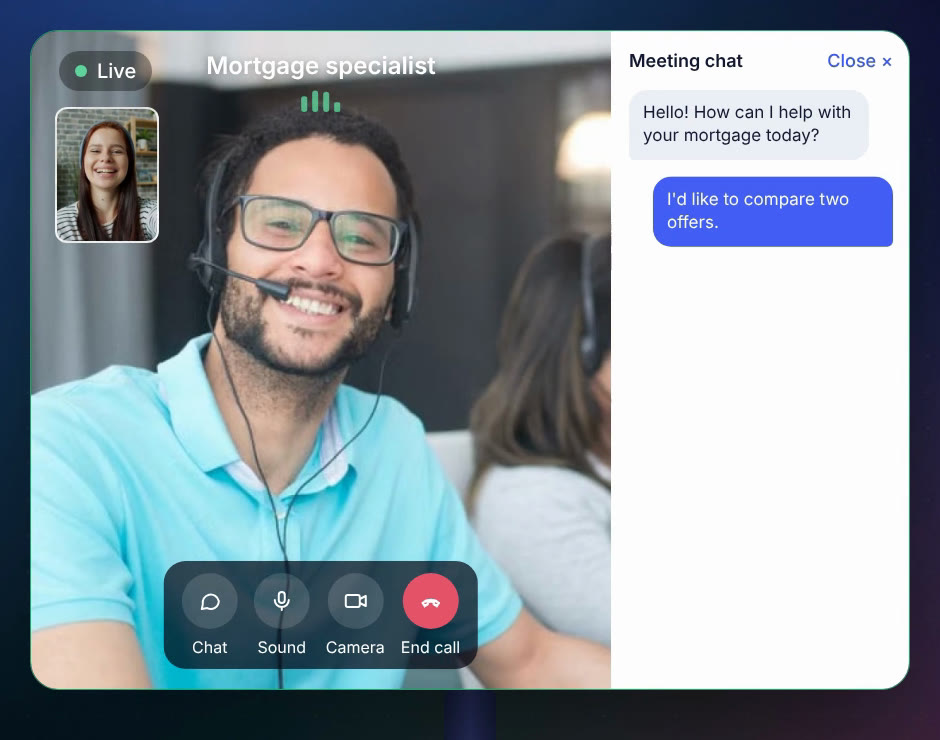
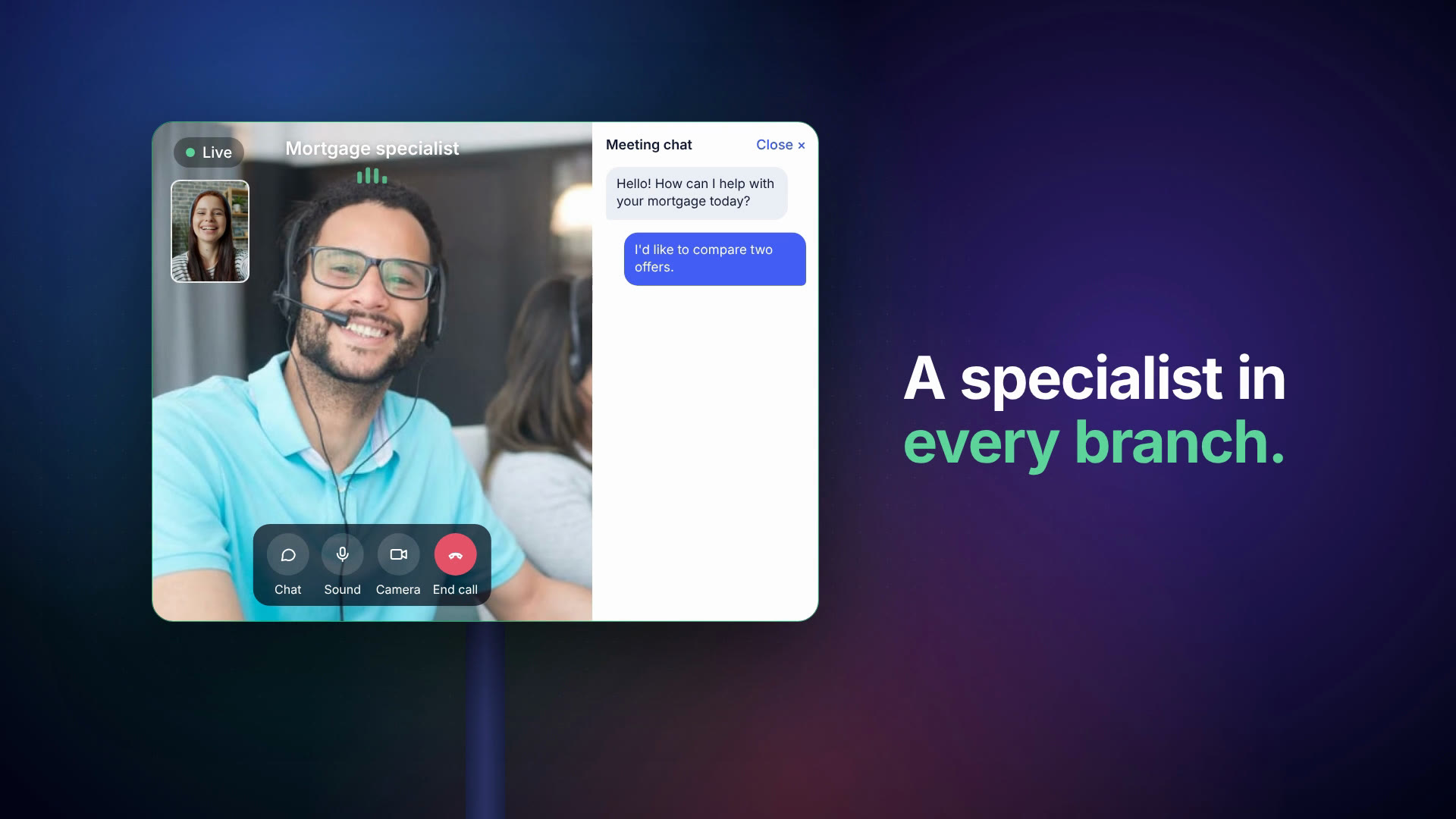
On the screen. The specialist appears full screen with the customer's own camera in the corner. The controls are large and labelled: chat, sound, camera, end call. A meeting chat opens beside the video for anything that is easier to read than to hear: an account reference, a link, a product name, a figure the customer wants to keep. Background blur is available on both sides.
Camera and microphone permissions are approved on the device in advance, so the customer does not meet a browser prompt in the middle of a branch.
In Genesys Cloud. The kiosk call reaches Genesys Cloud as a SIP call over the BYOC Cloud trunk that the AppFoundry install created. It is queued and routed like any other call. When the specialist answers in the Genesys Cloud agent desktop, both sides join the video session through the TrueEngage Agent App, an interaction widget inside Genesys Cloud. The Agent App shows which kiosk the customer is on, the interaction history and the call controls.
On a kiosk that runs on a PC, such as a totem with a computer inside, the Screen Sharing add-on lets the specialist show a document or a product page on the kiosk screen from the same Agent App. Screen sharing needs a PC, so tablet kiosks offer voice, video and chat.
The voice leg is recorded in Genesys Cloud under the recording policy the contact centre already has, and the session metadata is attached to the interaction. TrueEngage does not store video. Where video capture is required, it runs through Genesys agent-desktop recording.
4. The close: thank you, and a question
On the screen. When the call ends, the kiosk thanks the customer and can ask for a short rating of the conversation. Then it resets for the next person.
In Genesys Cloud. With the Feedback Forms add-on, the answers are stored as Genesys Cloud quality surveys on the interaction record, next to the recording and the wrap-up code. Quality teams evaluate kiosk calls in the same place as every other call. The interaction appears in native Genesys Cloud reporting with its queue, duration and wrap-up code, and the TrueEngage reporting module adds the kiosk side: how often each option is chosen, and at which hours the kiosks are busiest.
Where do video kiosks work?
Any network of locations where customers need expertise that not every location can staff.
Banks and credit unions. Branches carry the widest product range and the thinnest specialist cover. A video kiosk puts a mortgage, lending or business banking specialist in front of every branch customer, and keeps each conversation recorded in the contact centre. For credit unions, a shared specialist team can serve members across the whole branch network.
Telecom operators and retail stores. Store staff handle sales and simple service. Device setup, contract questions and technical faults need a product expert. An APAC telecom operator uses TrueEngage video kiosks in its retail stores to connect shoppers to remote product experts, with every interaction queued, routed, recorded and reported in Genesys Cloud.
Other location networks. The same set-up fits any business where the expert and the customer are in different places: insurance offices, travel desks, public service counters, showrooms. The kiosk is a screen and a widget; the routing decides who answers.
What does it take to run a video kiosk on Genesys Cloud?
The device. A tablet or a totem with a camera and microphone, mounted where customers can use it standing up. The TrueEngage kiosk widget runs in any up-to-date modern browser. Choose a PC-based totem when specialists should share their screen with the customer, because screen sharing needs a PC. The widget runs in kiosk mode, so the screen shows only the kiosk journey.
The network. Video kiosks use WebRTC, the standard browser technology for real-time audio and video. Branch firewalls need to allow the media traffic, as set out in the firewall guide for video calls. Activation can be restricted to the corporate network, so the kiosk widget does not start outside the branch.
Genesys Cloud. TrueEngage installs from the Genesys AppFoundry. The install creates the Genesys Cloud objects it needs: a role, groups, an app instance, the interaction widget for the Agent App, OAuth clients and a BYOC Cloud trunk. The Genesys Cloud admin then assigns a DID to a call flow for each kiosk widget, as described in how to deploy WebRTC voice or video on kiosks. No custom Genesys development is required.
The kiosk widget. Configured in the TrueEngage panel like any other widget: design, texts, channels, schedule groups and wait-time thresholds. The same TrueEngage account can run the website widget, the mobile app and the kiosks, each with its own settings.
Security. TrueEngage holds ISO/IEC 27001:2022 and SOC 2 Type 2, and supports GDPR and HIPAA requirements. Video media is not stored by TrueEngage.
Why the kiosk is one touchpoint among three
A customer who starts on the website, continues in the mobile app and walks into a branch is the same customer to the contact centre. TrueEngage puts the same contact options on all three touchpoints: web messaging, voice, video, callback and scheduled meetings on the website and in the app, and voice, video, callback and scheduled meetings on the kiosk. Every one of them lands in the same Genesys Cloud queues, so the specialist team, the reporting and the quality process are shared across all of them.
For the contact centre, a kiosk rollout adds locations to an operation it already runs. Agents answer kiosk calls in the same Genesys Cloud desktop they use for every other call.
For Genesys partners
A kiosk project opens a conversation with a part of the customer's business that rarely talks to the contact centre: the branch or store network. It usually comes with hardware, installation and rollout services across locations. TrueEngage covers the software side as an AppFoundry app, so the partner delivers the project on the customer's existing Genesys Cloud, with native routing, recording and reporting preserved. The kiosk touchpoint is included in the TrueEngage Advanced and Ultimate tiers.
Questions people ask
What is a video kiosk in a contact centre?
A video kiosk is a tablet or totem in a branch or store that connects a customer to a remote specialist by video or voice. With TrueEngage, the kiosk runs a dedicated widget connected to Genesys Cloud, so each kiosk call is queued, routed, recorded and reported in Genesys Cloud. Banks also call it an interactive teller machine or virtual branch; retailers call it remote expert.
Does a video kiosk need custom Genesys Cloud development?
No. TrueEngage installs from the Genesys AppFoundry, and the install creates the BYOC Cloud trunk, OAuth clients, role, groups and interaction widget it needs. The Genesys Cloud admin assigns a DID to a call flow for each kiosk widget, and the business configures the kiosk screens in the TrueEngage panel. Existing queues, skills and schedules are reused.
Are video kiosk calls recorded?
The voice leg of every TrueEngage kiosk call is recorded in Genesys Cloud under the contact centre's existing recording policy, and the session metadata is attached to the interaction. TrueEngage does not store video media. Where a business needs video captured, it uses Genesys agent-desktop recording.
What happens at the kiosk when every specialist is busy?
The kiosk shows the estimated wait and the number of people ahead, read from Genesys Cloud every 30 seconds. Each kiosk option can carry a wait-time threshold: above it, the immediate call can give way to a callback, or the customer can schedule a meeting for later. Options also follow Genesys schedule groups, so they hide outside the specialist team's hours.
Can a kiosk route to different specialists than the website?
Yes. Each TrueEngage kiosk widget has its own DID and call flow in Genesys Cloud, so a branch kiosk can send calls to a product-specialist queue while the website routes to general service. Several kiosk widgets can run in one account, for example one per branch type or product line, each with its own routing.
Which TrueEngage plans include video kiosks?
The kiosk touchpoint is included in the TrueEngage Advanced and Ultimate tiers. Advanced covers the website, mobile app and kiosk with one contact option type; Ultimate covers all touchpoints with all contact options. Both are available through the Genesys AppFoundry.